Defining reporting regions for a volumetric case
On the Reporting Regions form (model > Volumetrics), you can define various regions for which a breakdown of the volumes will be reported in the Volumetrics Report.
To define the reporting regions
-
From the Case drop-down list, select the case of interest.
-
Select a discrete 3D grid property from the Region drop-down list(s). You need to specify at least one region in order to generate the report. The Class table is populated with the classes of the selected property.
-
Select the checkbox for each class of your interest in the Class table. You can select multiple classes by using the Ctrl or the Shift key and then pressing the Space Bar.
- (Optional) Select a Geographic feature set and a Geographic feature from the respective drop-down list to use a boundary as a filter.
- Click Apply to define the regions and keep the form open, or click OK to define the regions and proceed to the Generate Report step.
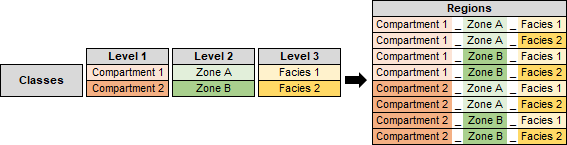
You can use up to three different levels to define the regions. Regions will be created as a result of combinations of all selected classes. click to enlarge
Upon Apply, the volumes are calculated based on the specified input and a Volumetrics Case folder is created in the JewelExplorer, under 3D Grids > Your 3D Grid > Properties > Your Volumetrics Case. The folder contains the following 3D grid properties: Fluid Legs, Region, GRV, NRV, NPV, Oil HCPV, and Gas HCPV.
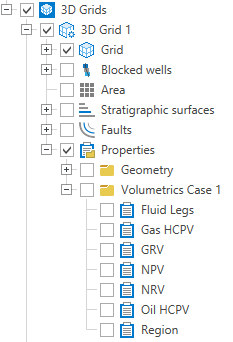
Once you assign regions and click OK, your volumetric case folder is created in the JewelExplorer. click to enlarge
When generating the volumetrics report in the next step, the default Region and (if used) Boundary names, will be reported in two parts : ‘Region 1_Region 2_Region 3_Boundary name_in’ and ‘Region 1_Region 2_Region 3_Boundary name_out’. The suffices ‘in’ and ‘out’ represent the volumes reported for inside and outside, respectively, of the assigned boundary. You can find the 3D grid property in the volumetric case in the JewelExplorer named 'Cell Fraction Inside Boundary' which represents the cell volume fraction inside the assigned boundary.